Contents
10-minute quick start
From a bare server to your first site on the CDN: install the controller → log in → install a node → add a site → update DNS → see the result. Every step maps to a real console page, and you can walk through it in the live demo first.
Install the controller
Prepare a Linux server with internet access: Debian 13 / Ubuntu 26.04 or later, at least 4 GB RAM and 20 GB free under /var/lib. The controller only manages config and analytics; it carries no site traffic. Nodes can run Debian 12 / Ubuntu 24.04 or later.
Log in to the server as root, paste the install command from your email and run it. It takes about 3 minutes:
t=$(mktemp) && curl -fsSL https://<provider>/i/•••••••• -o "$t" && bash "$t"Use the command from your email
When it finishes, the panel address is printed and the last line is MASTER_INSTALL_DONE <version>.
Log in
Open the panel address from the previous step in a browser. The user name is admin; the initial password is in /root/gocdn-admin.pass on the server (just cat it). You are asked to change the password at first login; after that, delete the file.
rm -f /root/gocdn-admin.pass.Install a node
A node is the machine that serves visitor traffic. Do not install it on the controller. Go to Node Management › Pending Setup, click + Add Node, click Copy command in the dialog, and run it as root on the node server. When it is done, the last line is NODE_INSTALL_DONE <version>.
Back in Pending Setup, the new node is listed; initialize (approve) it. A few seconds later the node gets its certificate, pulls its config and comes up. It shows as Online in the node list.
Add a site
Go to Site Management › All Sites, click + Add sites, enter the domain and origin address, and save. After saving, the site details show the site's CNAME target.
Update DNS
At your DNS provider, point the site's CNAME record to the target from the previous step:
www.example.com CNAME <CNAME target shown in the site details>For the details and how long it takes, see Set up the CNAME record.
See the result
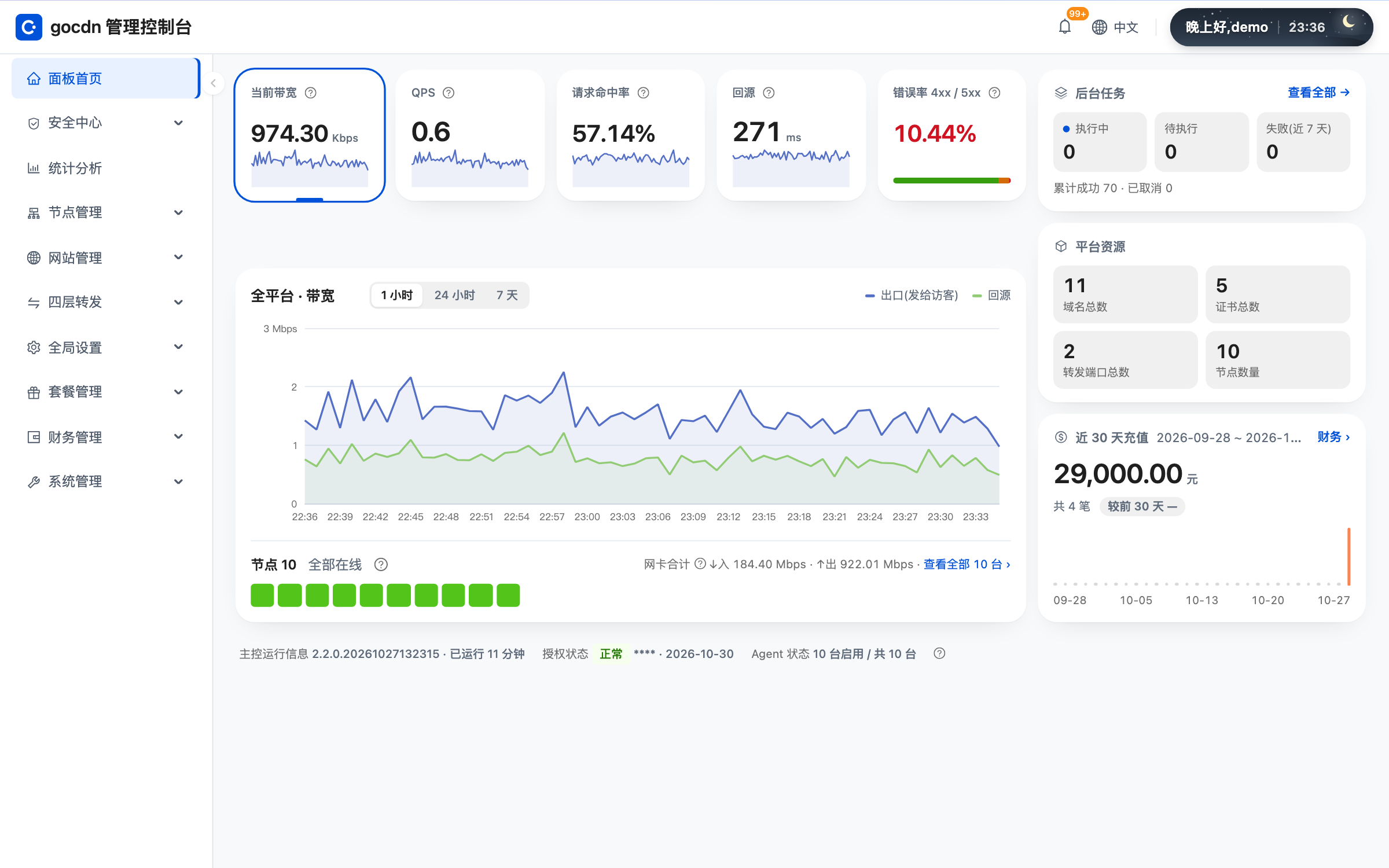
Once the record takes effect, visit the site. Statistics shows bandwidth and requests growing, and Security Center › Security Overview shows the protection summary. CC protection and the basic WAF are on by default and usually need no changes.
To turn on HTTPS, request a free certificate in the site's HTTPS settings; see HTTPS certificates. To understand how the parts fit together, read Architecture.